 Carvect™
Reference
Everything it does, listed.
19 toolpath strategies and the file formats in and out — with what each one is actually for. If something you need is not on this page, it is not in the product; we would rather you found that out here than after buying.
- Toolpaths
- 19 strategies across 2D, carving and 3D
- Simulation
- Material removal against real stock, before anything is cut
- Imports
- SVG, DXF, STL and bitmap images
- Runs offline
- The CAM never leaves your computer
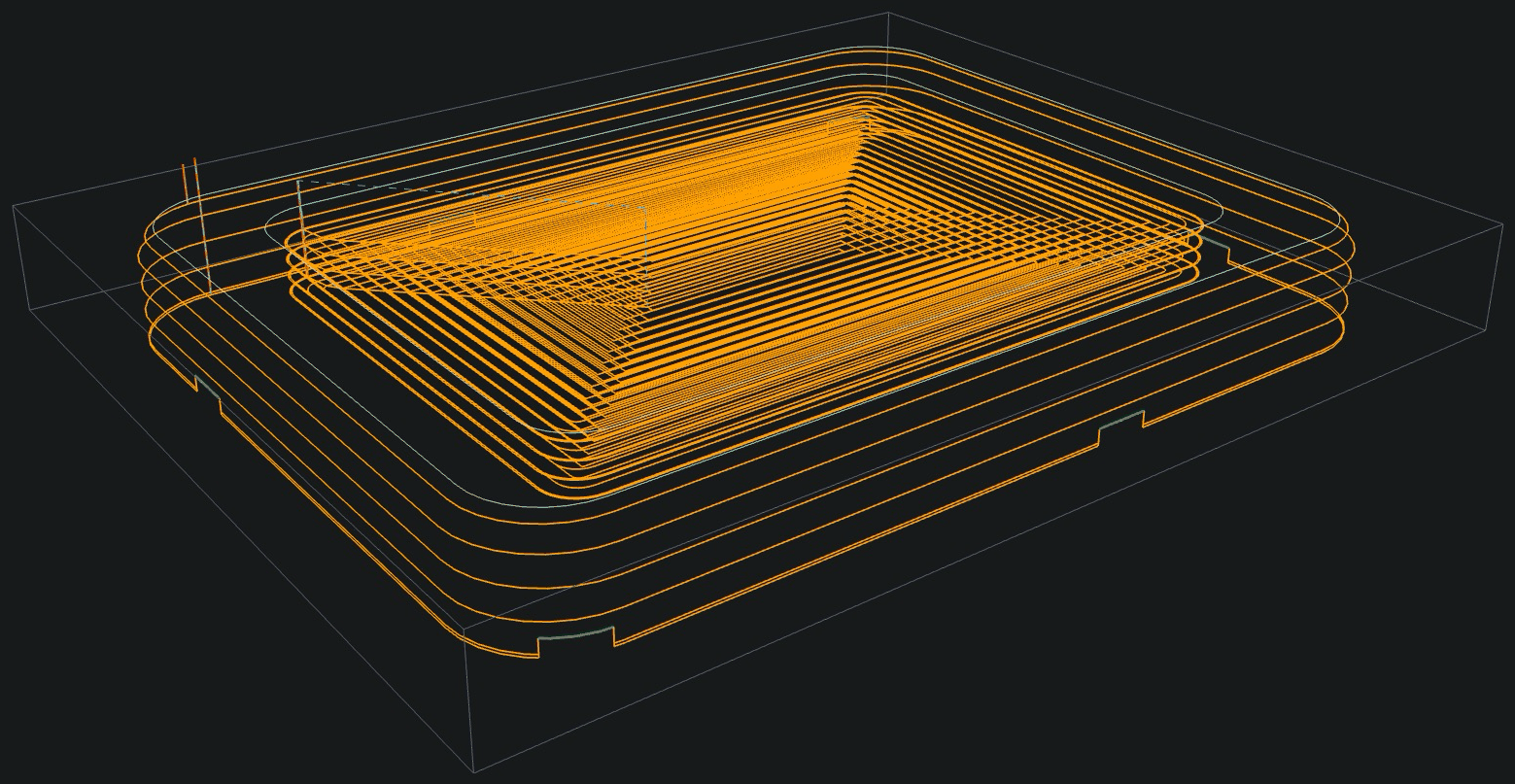
The workspace
Around the toolpaths
The parts of the application a job passes through whatever it is being cut with.
- Projects
- A project is a real folder on disk — Designs, Imports and G-code beside each other — not a list inside the application. Copy it to a stick, hand it to the next bench or restore it from a backup and it is still a project. Carvect lists them by name and opens straight into the file you last had open.
- A picture into a toolpath
- A photograph or a scan becomes cut geometry three ways: traced to vectors you can edit, carved as a photo V-carve at varying depth, or read as a height map for a 3D relief. The image lands on its own layer, so it can be hidden once the vectors are out of it.
- Your machine, carried through the job
- The machine library holds each machine's travel, axis directions, rapid rates and spindle range, and the job is designed against them: feeds are clamped to what that machine can actually do, and a toolpath that runs off its table is reported before the file is written rather than at the machine.
- Posts you can edit, header and footer included
- A post is a JSON description of your controller's conventions. Put your own preamble, coolant line, park move or shop comment into its header and footer once and every file that post writes carries them, with a live sample of the G-code beside the fields as you type.
- A tool database, and a material one
- Bits live in the tool database with their geometry and their cutting numbers. Materials live beside them, each carrying a feed, plunge, speed, stepover and stepdown per tool shape — so picking a bit for a job in oak fills the parameters with the numbers for oak rather than the bit's general-purpose ones.
- Feeds that follow the cut, until you say otherwise
- With auto feeds on, each operation takes the material’s numbers for that bit shape — or, where the material says nothing, a feed computed from the bit, the stock, the strategy and the machine’s own limits — and the feed then eases into corners and lifts on light cuts, clamped to what the machine can do. Turn it off and the numbers you set are written through untouched. Ramp, entry, stepover and stepdown are never auto-set either way.
- Drawing to a number, not to a pixel
- Draw by dragging where that is quicker, or type the line, circle or rectangle exactly — position and size, in the unit the job is in — then offset, fillet, array, mirror and boolean it like any other geometry.
- Measuring, without picking up a tool
- Select a shape and it reports itself: length for an open curve, perimeter and enclosed area for a closed one, and centre, radius, diameter, sweep and circumference for arcs and circles. Distance and angle between points you pick have tools of their own, as does measuring part of a circle by sweeping it out by hand.
- 3D models, placed where you want them
- Import an STL, set how tall it stands and where it sits in the stock, and carve only what is above the Z plane — an interactive cross-section shows what will be cut and what stays buried. Vectors and a model share one sheet and one run.
Toolpaths
2D and 2.5D
Cutting through and into flat stock — the work most machines spend their life doing.
 Profile
- Cut along a contour, inside/outside/on the line, with arc lead-ins, holding tabs and an optional finishing pass.
 Pocket
- Clear an area to depth — concentric offsets, raster, or a continuous spiral — with islands left standing.
 2D Adaptive Clearing
- Clear at a constant radial engagement, so the cutter is loaded the same in a corner as in open air; deeper cuts, faster feeds, less heat.
 Trochoidal Clearing
- Clear a shape, into every corner, with the cutter taking light half-circle bites instead of burying itself; on an open line, a slot wider than the tool.
- Rest Machining
- Cut only what the previous, larger tool could not reach, computed from the material it actually left.
 Drill
Drill- Peck, dwell and retract cycles from circles or points, with reducing pecks and a break-through allowance.
 Chamfer
- Break an edge with a V-bit or chamfer mill, on either side of the line, to a width or an angle.
 Round Over
- Roll an edge to a radius with a round-over cutter, inside or outside the line, in one pass or stepped down for a clean finish.
Carving
Strategies where the depth varies with the shape, rather than being a number you set.
 V-Carve
- Vary the depth so a V-bit's width matches the shape's, following the medial axis; optional flat bottom cleared by a second tool.
 Inlay
Inlay- A tapered cavity and its mirrored plug, both cut with the same V-bit, on two boards. The angled walls wedge the plug tight as it seats — no side gap, no glue line, and corners as sharp as the bit's point. The plug's wall height is set so it seats at an exact depth rather than wherever it jams.
 Engrave
- Follow the line itself at a fixed depth — text, outlines, single-line fonts.
 Flute / Wide Flute
- Decorative rounded flutes along a path, sized by the ball-nose or by a chosen width.
 Prism
Prism- Raise a shape to a faceted prism, cutting the sloped faces with a V-bit.
- Photo V-Carve
- Turn a photograph into variable-depth V-cuts on a grid, so the image reads as light and shadow in the material.
- Sketch Carve
- Hatch a bitmap into carved line work, the way a pen sketch builds tone.
3D
Machining an imported model or a modelled relief, rather than a flat part.
 3D Roughing
- Take the bulk off an imported model in level passes, leaving a machining allowance for the finishing tool.
 3D Adaptive Clearing
- The same constant-engagement clearing, applied level by level to a 3D model.
 3D Finishing
- Parallel, contour, scallop or pencil passes over the surface, with the stepover set by the scallop height you will accept.
 Surface / Relief
- Machine a height field — a relief modelled or imported into the job — rather than a solid.
Machines and files
Machines it drives
The first question a CNC buyer asks, answered before the list of everything else.
- 3-axis routers and mills
- X, Y and Z, with the tool vertical. Every strategy here is a 3-axis strategy — including the 3D roughing and finishing, which reach a shape by stepping the cutter over it, not by tilting it.
- Two-sided work
- A job can be flipped about X or Y and machined from both faces, with the second side's geometry mirrored for you and the datum kept.
- Your machine's limits, not a generic one
- The machine library holds each machine's travel on every axis, its axis directions, its rapid rates and its spindle speed range. Feeds are clamped to what that machine can do, and a toolpath that leaves its travel is reported before the file is written.
- Tool changes
- Multi-tool jobs are ordered and merged by tool, and the post decides what a change emits — an M6 with a pause for a manual change, or the sequence an automatic changer expects.
- Not 4-axis, 5-axis or rotary
- There is no A axis and no wrapping: a 4th-axis or 5-axis job, and a lathe, are outside what this package does. Cutters that need a tilted tool — dovetail, T-slot, lollipop, barrel — are deliberately absent from the tool library for the same reason.
Files in
- SVG
- Vector artwork, including paths, shapes and text converted to curves.
- DXF
- CAD drawings — lines, arcs, polylines, circles and splines.
- Images
- PNG, JPEG, BMP, GIF and TIFF — traced to vectors, carved as a photo, or used as a relief height map.
- STL
- Triangle meshes, for 3D roughing and finishing — and a model taller than the machine can reach is sliced into layers, each carved on its own board and glued back up.
Files out
- G-code
- Written by the post you choose for your machine; the file extension follows the post.
- SVG / DXF
- The drawing back out again, for another tool in the chain.
- Carvect job (.cvc)
- The whole job — vectors, toolpaths, tools, stock and machine — in one file.
System requirements
- Windows
- Windows 10 or 11, 64-bit.
- macOS
- macOS 13 Ventura or later, Apple silicon (M1 or newer).
- Memory
- 8 GB is comfortable for 2D and 2.5D work; 16 GB if you regularly rough large 3D models.
- Graphics
- Any GPU with OpenGL 2.1 — the 3D preview and the material-removal simulation render through it. Where it is missing the 2D and 2.5D work is unaffected; only the preview is.
- Internet
- Only to check the license. The application works offline for a week between checks, and the CAM itself never leaves your machine.